cheraxQ&A
Cherry Q and A
1.
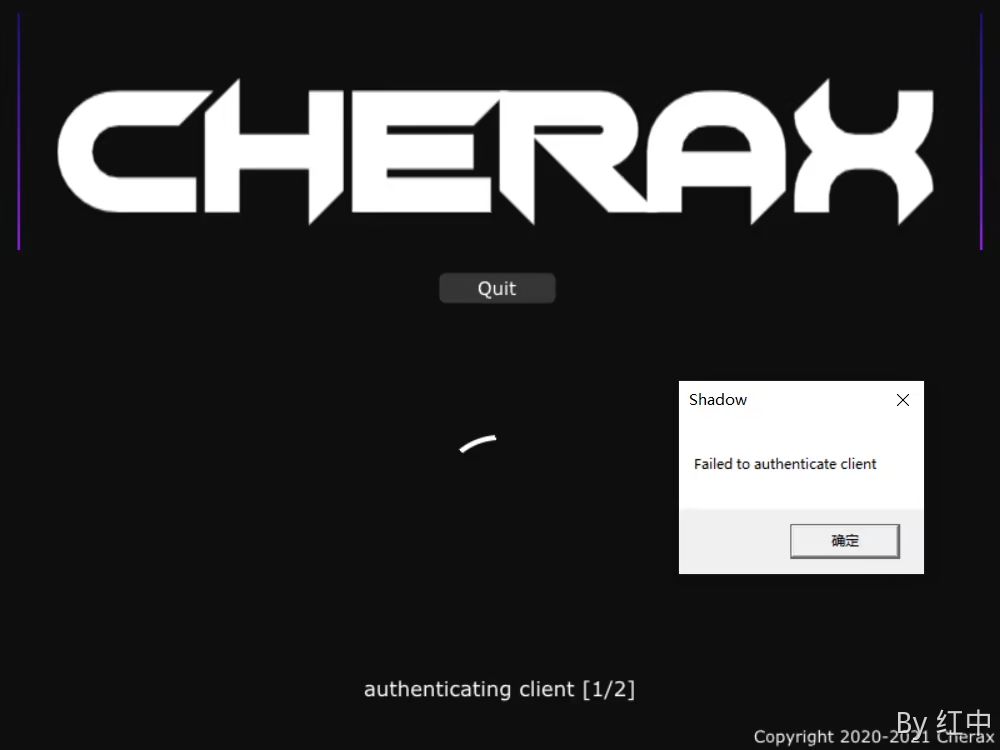
The account is not activated or the injector needs to be re-downloaded from the official website or there is a network problem.
2.
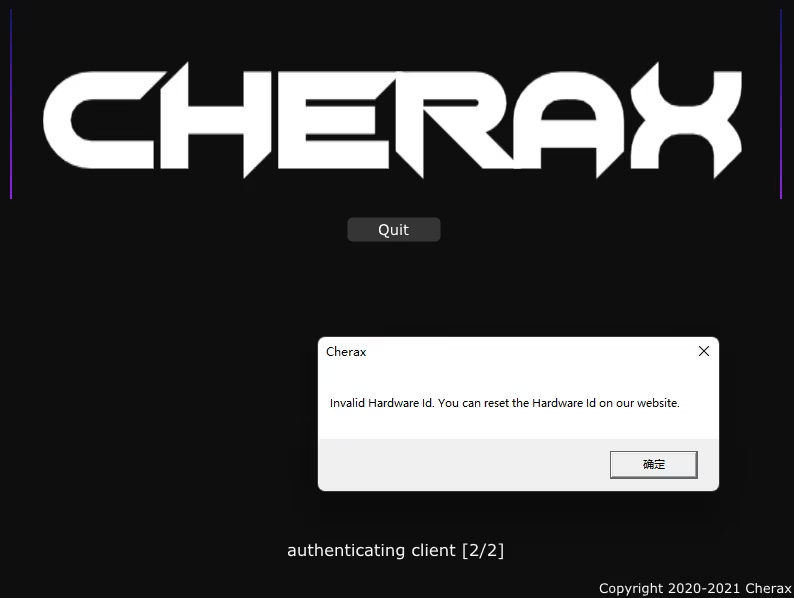
3.
hint: Loder outdated. Please redownload from the website.
solve:Go to the official website to re-download the injector
4. Why was the injection not successful after I clicked start?
You can uninstall all installed antivirus software and turn off Windows Defender's real-time protection. You can also try adding the Cherry folder (Documents->Cherax) to your antivirus software's whitelist.
4.1 The injector failed to log in successfully (Failed to make post request: Couldn't resolve hostname)
Some third-party software may block the connection: Avast - Kaspersky (turn off Safe Browsing) - ESET (turn off Network Traffic Scanner) - HTTPDebugger (uninstall) - BitDefender (uninstall) p.s. If you still can't, you can try to surf the Internet scientifically.
4.2 Error "This application cannot be run on your computer"
Uninstall Norton Anti Virus and restart.
5. After downloading the Cherry Launcher, use the anti-virus software to report the virus
It is recommended to uninstall the anti-virus software or add it to the whitelist.
6. Keep reporting errors: "Failed to find some patterns"
Make sure nothing else is injected before you inject the cherry. Then take a look at the status release page and bulletin board. If this continues, please seek help from staff. p.s. In actual testing, Cherry cannot be used with 2t. When used with Shidan, Cherry protection needs to be turned off, otherwise it may cause false alarms.
7. The injector displays an error "Acces Denied" when logging in
The account password was entered incorrectly, please check carefully.
8. What should I do if the injection interface is stuck/the injection crashes?
Download and install the latest Visual C++ Redistributables.
p.s. Download link
9. Why can’t the mouse cursor move after I open the menu?
This is probably related to the mouse input method. In your gta settings->mouse/keyboard->change the mouse input method to "raw input".
10. Crash during injection and error reported: "ImGui_ImplDX11"
Try changing the scaling to 100% in (Windows) Settings->System->Screen. If that still doesn't work, go to the document and delete the cherry folder.
11.How to modify the outgoing call button
In Settings->Toggle GUI, move the mouse over it and press f10 (I am f9, I don’t know why, if you can’t f10 try f9), then a page will appear asking you what button to bind, then press the button you want to bind and it will be ok.
Don't forget to save your settings after this.