xg-关闭安全启动-7f3106
Turn off secure boot
Please make sure you have closedDevice encryptionOperate later
Turn off device encryption in Windows 11:
1. Type in the Windows search bar[Device encryption settings]①, and then click [Open] ②.
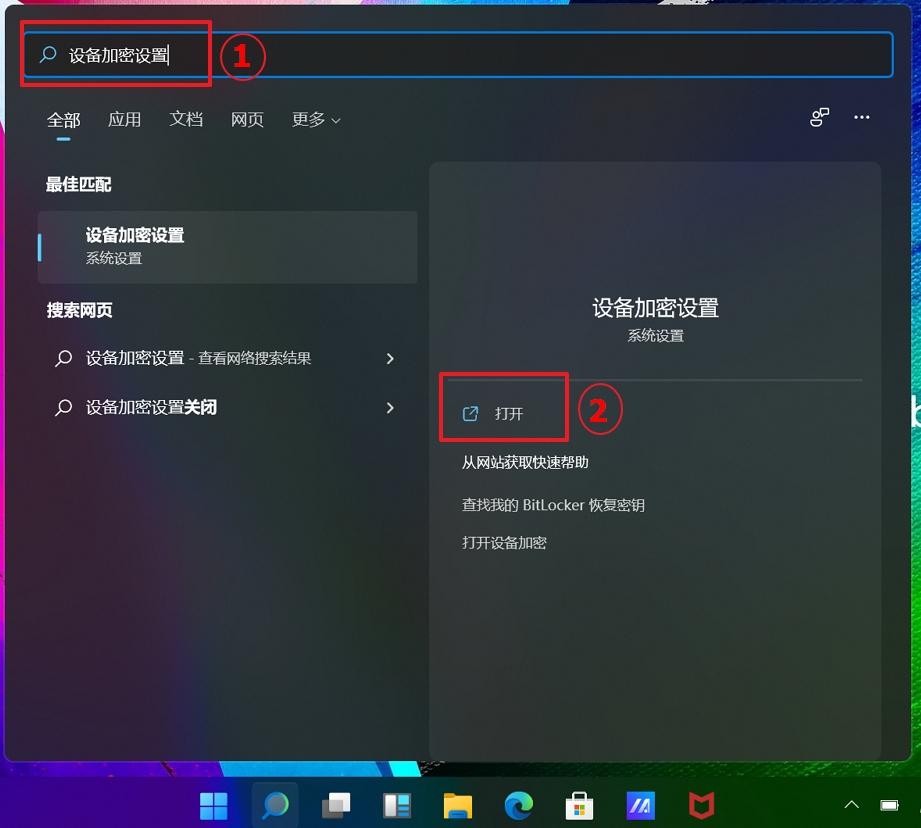
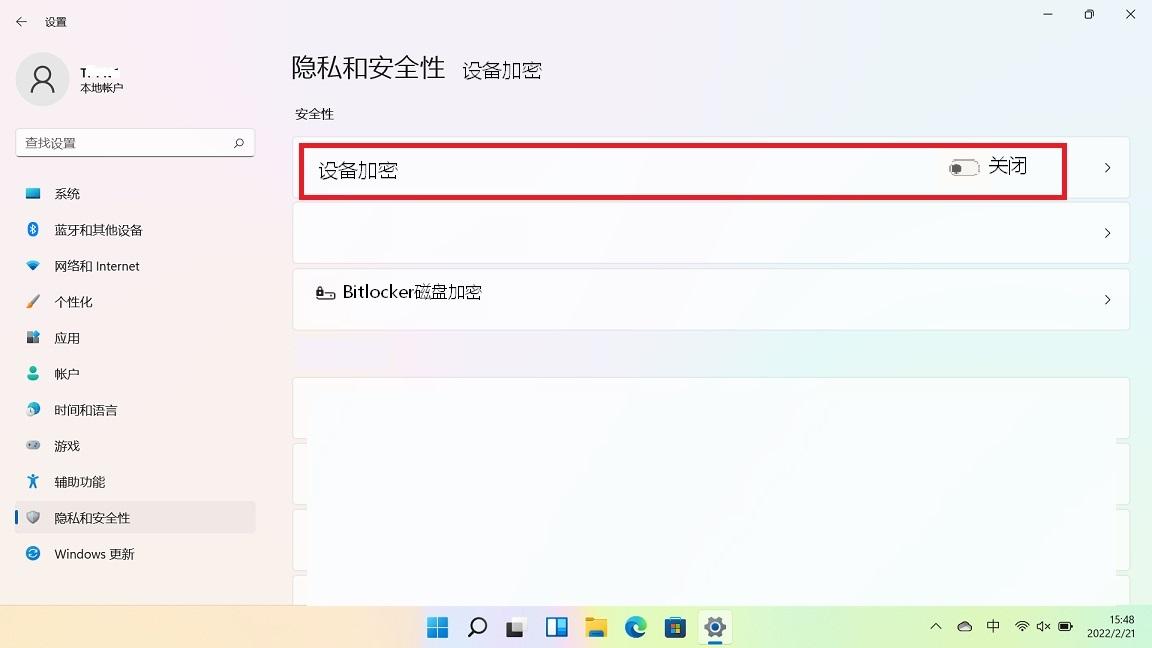
2. In the device encryption field, set it to [Off]③.
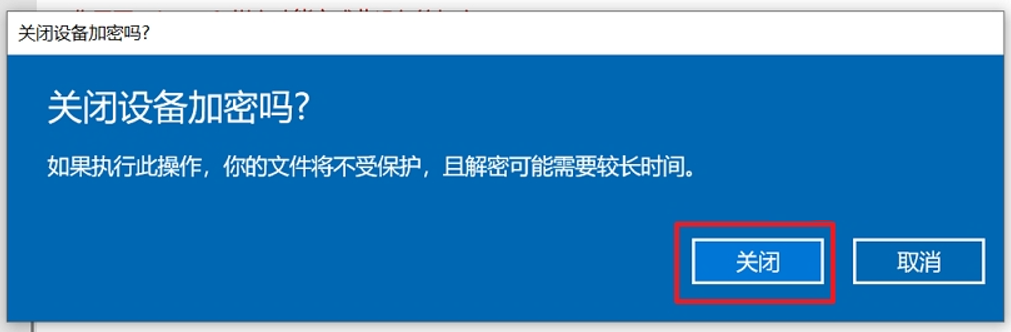
3. The system will remind you whether you need to turn off device encryption, click[closure]You can turn off device encryption ④.
Windows 11 Pro turns off standard BitLocker:
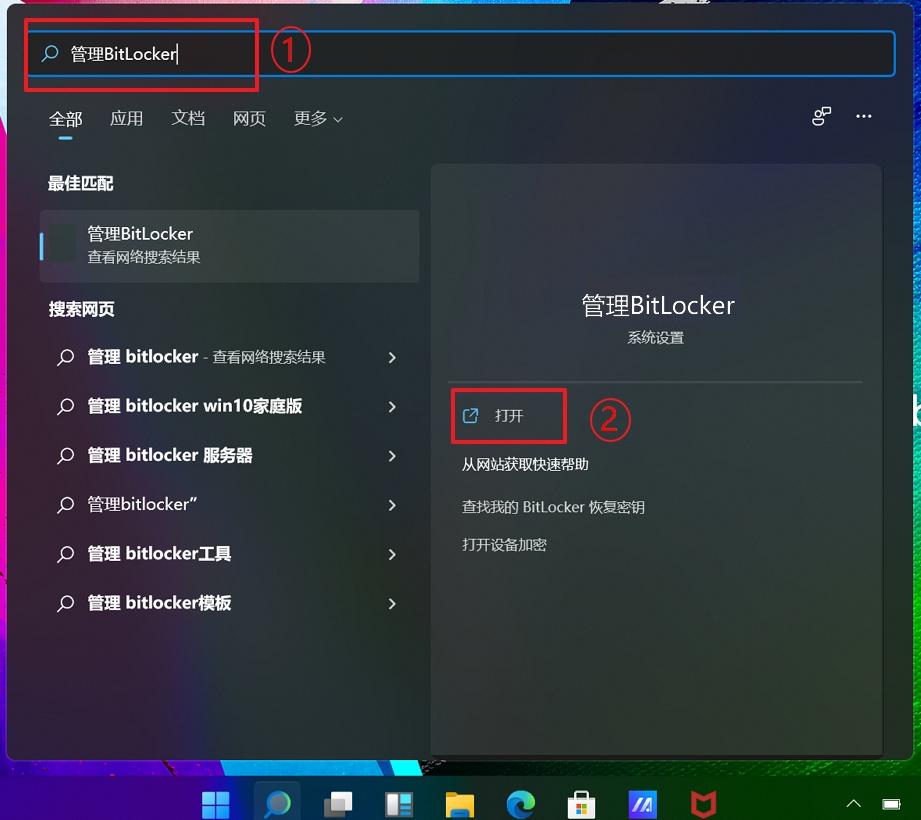
1. Type in the Windows search bar[Manage BitLocker]①, and then click [Open] ②.

If the disk drive is currently locked, you will need to first click[Unlock disk drive]And enter the password to turn off BitLocker.

3. Confirm if you want to decrypt the disk drive, click[Turn off BitLocker]④The disk drive decryption will begin and your disk drive will no longer be protected.

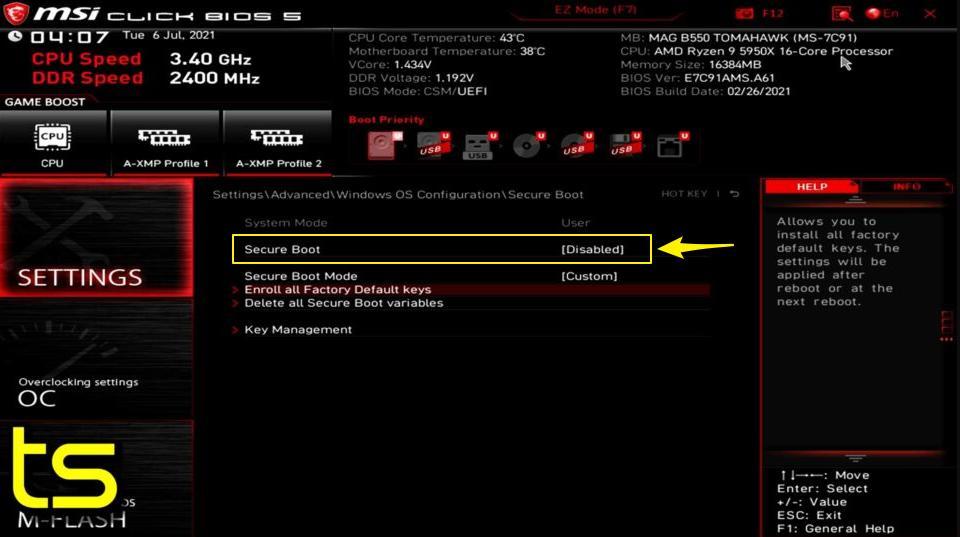
After completion, the following uses the MSI brand as an example to introduce the UEFI BIOSDisable secure bootsteps.
Step 1: After entering the UEFI BIOS, if the BIOS is in Easy Mode, you can press [F7] to enter Advanced Mode.
Step 2: Jump to [SETTINGS] > [Advanced] > [Windows OS Configuration], and then[Secure Boot] is set to [Disabled](Other brands of computers also turn off this option)。
Step 3: Save settings and restart your computer.
If you are unable to disable Secure Boot on your PC, it may be because your PC does not have an option to disable it, and it depends on the PC manufacturer to add the feature. Therefore, if you cannot find this option on your device, it is recommended to contact the manufacturer for assistance.