lexisPassword
Password modification tutorial
This page explains how to change your Lexis account password.
access:https://lexis.re/panel/settings
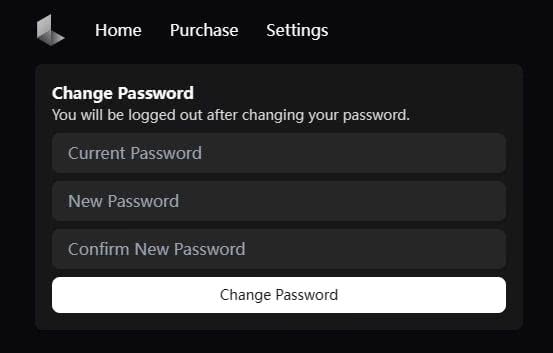 ## Modification steps
Corresponding input: 1. Log in to the official website
- accesshttps://lexis.re
Original password 2. Log in with current account password
- Go to the account settings page
New Password
2. Find the password change option
Repeat new password 1. Find "Change Password" in the account menu
- Or look for password options on the settings page
last clickChange PasswordChange password 3. Click to enter the password change interface
3. Fill in the information
Required input:
-
Original password(Old Password)
- Enter your current password
-
New Password(New Password)
- Enter the new password you want to set
- Follow password conventions
-
Repeat new password(Confirm New Password)
- Enter new password again to confirm
4. Submit changes
Click the "Change Password" button to complete the modification
Password specifications
- only usenumbers + letterscombination
- Length at least8 bits
- Do not use: Chinese, space, Chinese symbols
- It is recommended to use a mixture of upper and lower case letters
Good password examples
- ✅
Lexis2024abc - ✅
MyPass123456 - ✅
GtaMenu88888
Bad password examples
- ❌
123456- too simple - ❌
Password 123- Contains Chinese - ❌
pass 123- Contains spaces - ❌
admin!123- Contains Chinese symbols
Things to note
- Remember new password- If the password is lost, it may not be retrieved.
- Back up now- Record the new password immediately after changing it
- Change regularly- Recommended to replace every 3-6 months
- don't share- Passwords are key to account security
What should I do if I forget my password?
If you forget your current password
- Look for "Forgot Password" on the login page
- If this option is not available, contact after-sales support
- Provide account and activation code information
- Waiting for manual processing
Not all menus provide password retrieval service, please be sure to keep your password
FAQ
Q: How long does it take for a password change to take effect?
A: Effective immediately. After modification, you need to use the new password to log in.
Q: Will changing the password affect logged in devices?
A: Usually it will force other devices to log in again.
Q: Can I use special symbols?
A: It is recommended to use only letters and numbers, some special symbols may not be supported.
Q: Can the password be the same as the username?
A: Not recommended, but technically possible. For security, different passwords should be used.
Q: How often do I need to change my password?
A: It is recommended to change it every 3-6 months, or change it immediately when you suspect that your account has been compromised.
Account Security Advice
Password management
- Use a password manager- Such as 1Password, LastPass
- Do not reuse- Use different passwords for each website
- Regular replacement- Keep your account secure
- Record backup- Store in a safe place
Prevent password leaks
- ❌ Do not enter your password in public places
- ❌ Do not send passwords via chat software
- ❌ Do not save in browser (unsafe environment)
- ✅ Log in using the official website
- ✅ Confirm that the URL is correct (https://lexis.re)
- ✅ Avoid using public networks
Related operations
Unbind HWID
If you need to replace the device, please refer toUnbinding tutorial
Account security
Additional steps to keep your account secure:
- Don't share account
- Do not take screenshots that include account information
- Beware of phishing websites
- Only download launchers from official sources
Technical support
If you encounter problems:
- Check network connection
- Confirm that the entered information is correct
- Clear browser cache
- Try changing browsers
- Contact after-sales support
Related links
- Tutorial- Account registration and use
- Unbinding tutorial- HWID unbinding method
- FAQ- Other problems solved